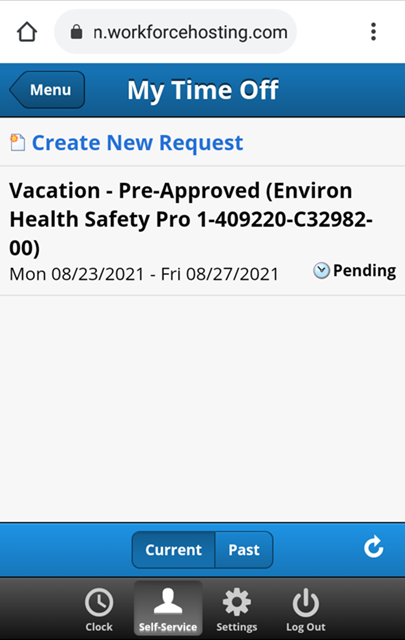
You can request time off for up to 365 days from the current date in EmpCenter Mobile just like the Desktop version. However, you can only use one leave pay code per request in Mobile. If you need to use more than one pay code, you will need to access EmpCenter from a computer to view the Desktop version.
1. After selecting My Time Off from the Dashboard, click on Create New Request:

2. Click on select dates on the time off request to open the calendar; click the start and end dates then OK to return to the request:

Note: for a single day, just select the date then click OK.
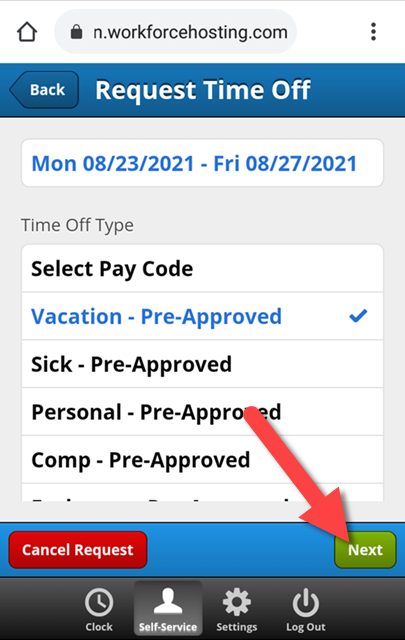
3. Select the pay code then click Next:
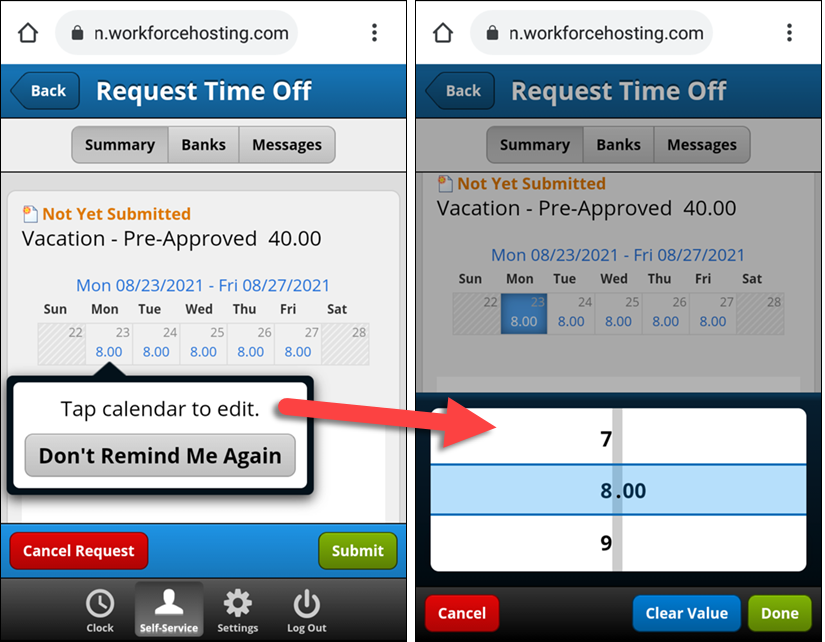
4. If needed, click on a day to edit the hours:
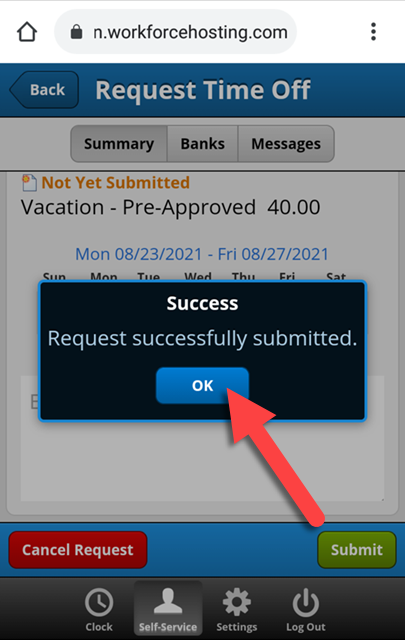
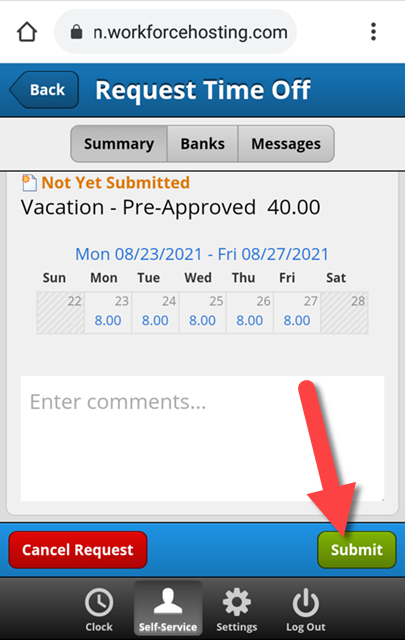
5. Enter comments if needed then click Submit:
6. Click OK to return to the Create Time Off Request window: