

EmpCenter uses your Banner Preferred Email for all notifications. If you need to update your email address, follow the instructions below.
Note: updating your Banner Preferred Email will change the email for all Banner notifications - not just EmpCenter.
1. Log on to MyOregonState using your ONID username and password. You will also need to authenticate with Duo.
2. On the Overview page, select Online Services Employee Dashboard from the Featured box:
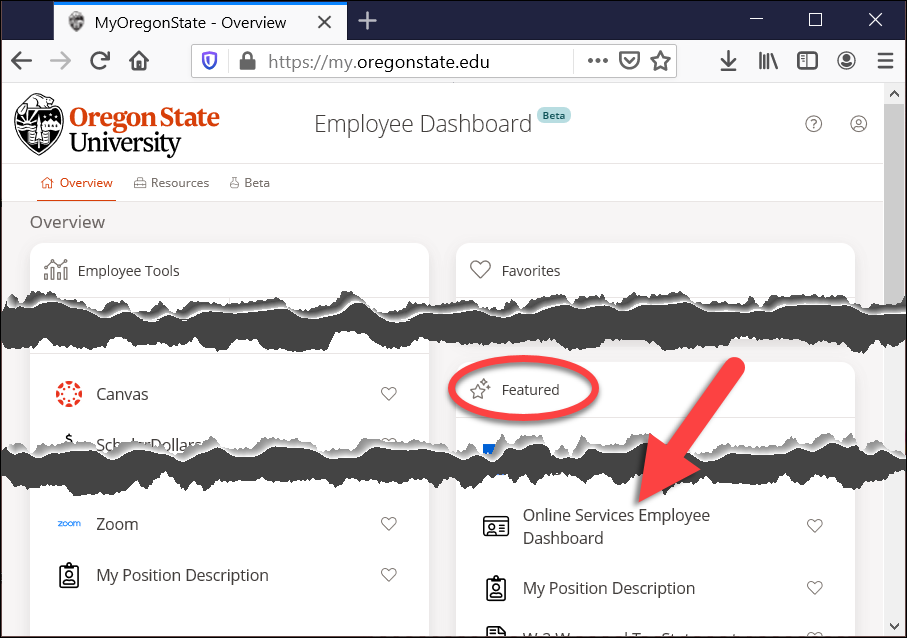
Note: If you do not see the Online Services Employee Dashboard link on your overview page, click on the Resources link at the top and search for it on the Resources page.
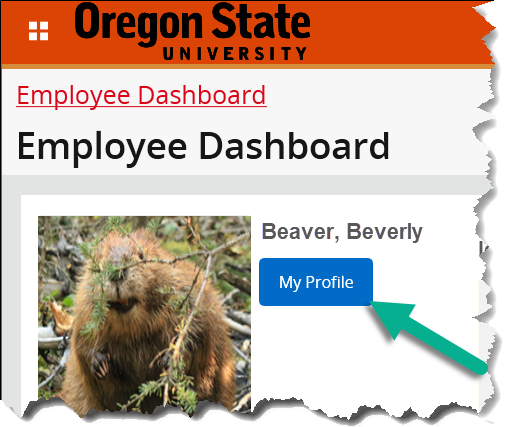
3. On the Employee Dashboard, click My Profile:
4. From the Employee Profile page, click on the Edit button in the Emails section:
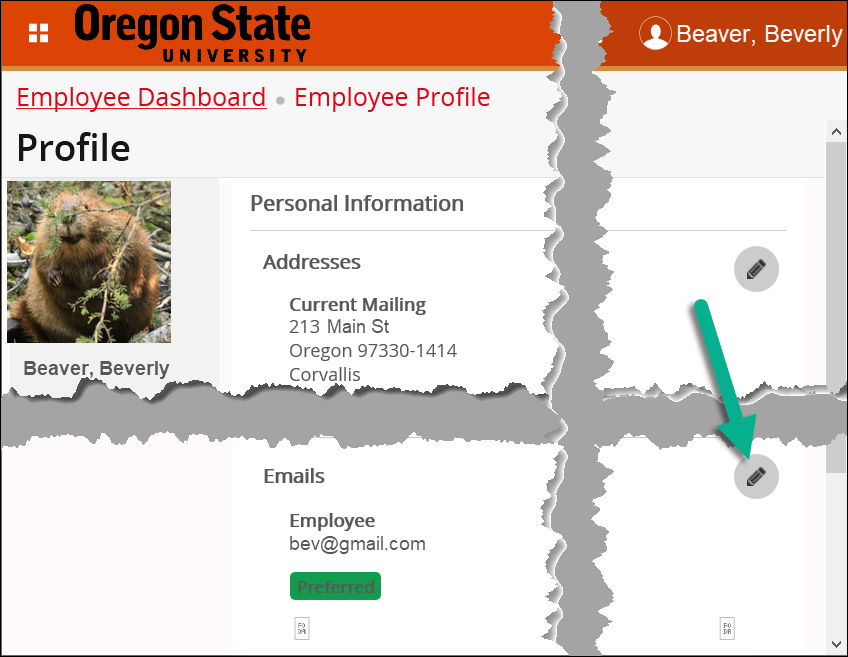
5. On the Personal Information page, click on the Edit button under Email Employee (Preferred):

6. In the Edit Email window, enter the new email address, make sure Mark as Preferred is checked, then click Update:
