

Missing In/Out Time
Triggered when there is a Clock or Work In/Out row that is missing an in swipe or an out swipe.
Example:

How to Correct:
Add the missing in or out swipe and save the timesheet. There are several FAQs to help:
Clocked In Instead of Out for Day
Contact us if you need additional assistance.
Leave Bank Exhausted
Triggered when the leave type used does not have a balance available.
Examples:


How to Correct:
Change the leave to another appropriate type or Leave Without Pay (LWOP). Contact us if you need additional assistance.
Overlapping Punches
Triggered when there is clock or work in/out times that overlap - either on the current timesheet or with another active timesheet for the employee. The timesheet cannot be saved until the issue is resolved.
Example:

How to Correct:
Work time cannot overlap. Adjust the work time so it no longer overlaps with the time already entered. If the employee has more than one timesheet, check the results tab to see where the other time is entered. Contact us if you need additional assistance.
Hours Less Than FTE
Triggered when a classified salaried employee enters less hours for the week than is expected for their FTE (e.g., 38 hours instead of 40 for a 1.0 FTE). Note this exception does trigger on Saturdays, so hours entered on Saturday will not calculate correctly until the correct number of hours is entered for the week.
Example:

How to Correct:
Add any missing worked time (such as missed clocks) or leave time or change the meal period (if the employee took less than the amount listed). If the week crosses a pay period and the issue is related to time on the previous pay period that is closed, please contact HR for further assistance.
More Than 40 Hours For the Week
Triggered on unclassified timesheets when over 8 hours of leave is entered M-F or any amount of leave is entered on a weekend.
Example:

How to Correct:
If the leave entered is corrected (employee regularly works more than 8 hours/day or works weekends), the employee or supervisor can acknowledge the exception by checking the box and saving the timesheet:

If the leave is not correct, correcting or removing the hours and saving the timesheet will remove the exception:

Over 12 Hours Leave Entered/Over 12 Hours for the Day
Triggered when 12 or more hours of leave is entered for the day - on one or more timesheets.
Examples:


How to Correct:
Change the leave hours to less than 12 or remove the leave if it was entered on the same day as a university holiday. If the employee has more than one active timesheet, make sure the leave/holiday hours correctly split between the two timesheets.
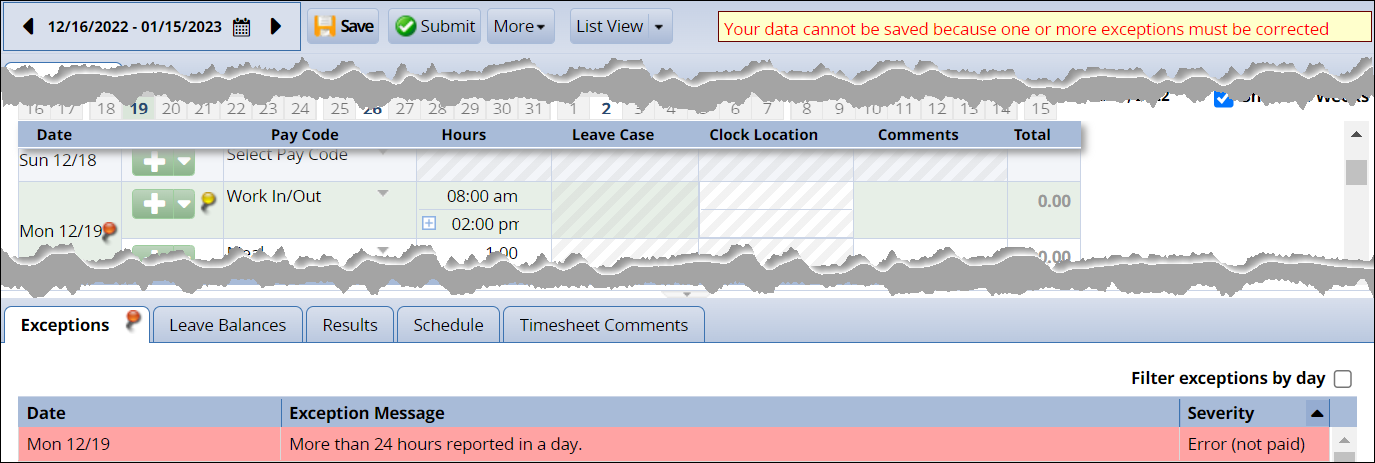
More than 24 Hours on Day
Triggered when more than 24 hours is entered for the day. The timesheet cannot be saved until the issue is resolved.
Example:
How to Correct:
Enter less than 24 hours for the day. For clocking errors, see the more than 24 hours FAQ or contact us for assistance.
Special Day
Triggered when the Special Day pay code is used outside of the approved date range (day before Thanksgiving - January 31st; Special Day may be used through June 30th if unable to use in that timeframe).
Example:

How to Correct:
Change the leave to another appropriate leave type or LWOP.
Holiday on Non-Holiday
Triggered when the Holiday pay code is entered on a day that is not a scheduled (either observed or actual) University holiday.
Example:

How to Correct:
Remove the Holiday pay code. If the employee did not work that day, enter another appropriate leave type or LWOP.
See the Holiday Guide, Holiday Normal Day Off FAQ, Observed vs. Actual FAQ or Changing the Holiday FAQ for more information. Contact us for additional assistance.
***More to come soon.***