

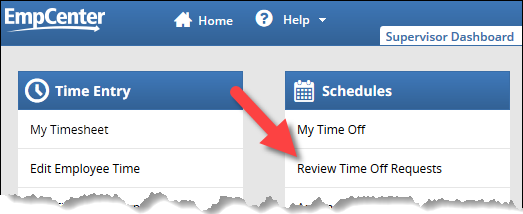
1. From the supervisor dashboard, click on Review Time Off Requests:
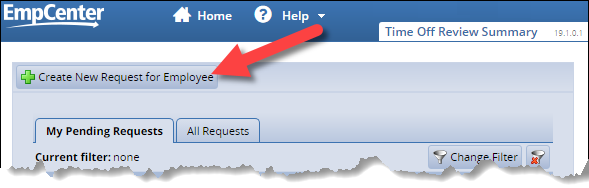
2. On the Time Off Review Summary page, click Create New Request for Employee:
3. Enter the employee's name or some portion of their name (use the * as a wildcard if needed) then click Search:

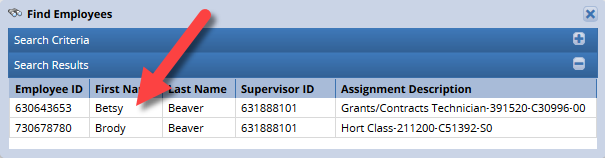
4. Select the employee you are creating the request for by clicking on their name:
5. Enter the time off request details, including pay code, start and end dates, and comments if needed then click Next:
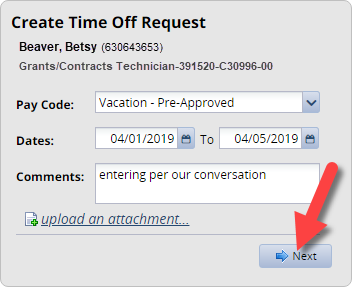
Note: for instructions on entering the time off request details, see the create request FAQ.
6. On the request details page, click Submit to send the request to your queue for approval:

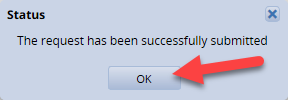
7. You'll receive confirmation that the request was successfully submitted. Click OK to return to the Pending Requests page:
The request will show up on the time off request list for your review. See the Approve Time Off FAQ for more information.